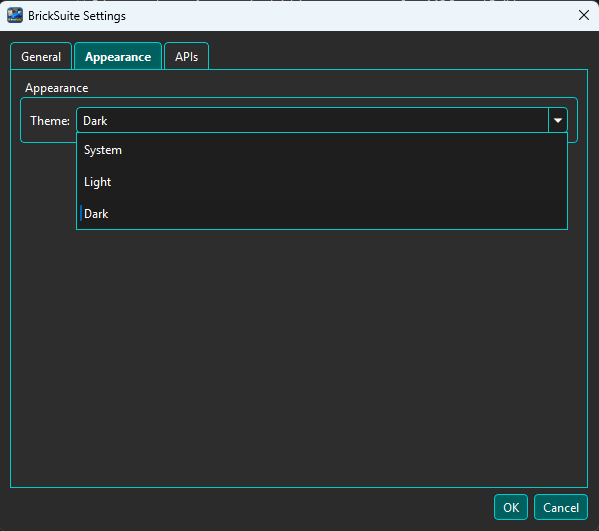
Settings contains user preferences that control how BrickSuite starts, appears, and connects to supported external data providers. These preferences persist between application sessions.
Open Edit → Settings. Pages include General, Appearance, APIs, Database Backup, Server, Builds, and 3D Models.
Settings are separate from the BrickSuite database content that represents your workshop.
BrickSuite Database
  Workspaces, Storage, Inventory, History
  Builds, Requirements, Allocations

Application Settings
  Startup preferences
  Appearance
  Automatic database backup policy and status
  API provider configuration
The General page contains application-wide preferences, including the Default Workspace. The Default Workspace determines which Workspace BrickSuite selects automatically when the application starts. When only one Workspace exists, BrickSuite can select it automatically.
Shared Data Source controls where workshop data is owned. This Computer uses this device for both local reference catalogs and Workspaces, Storage, Inventory, Builds, and Collection. BrickSuite Host continues using this device's Rebrickable catalogs, compositions, images, and built-in Part Reference while shared workshop data comes from a Host. Changing this setting takes effect after restarting BrickSuite; it never copies, merges, or deletes either source's data.
The Server page configures the optional BrickSuite WSS Host and remote Client connection. The Server page has This Computer, Host Client, and Devices sections. Server mode is disabled by default and is available only with Shared Data Source = This Computer. Host-client mode cannot also expose a Server. Settings includes explicit bind address and port, certificate fingerprint, access-token generation/rotation, Host identity regeneration, secure Client endpoint, trusted fingerprint, masked Client token, reconnect preference, and a real Test Connection workflow.
See BrickSuite Server for certificate verification, router port forwarding, firewall, LAN/public addressing, and secure setup guidance.
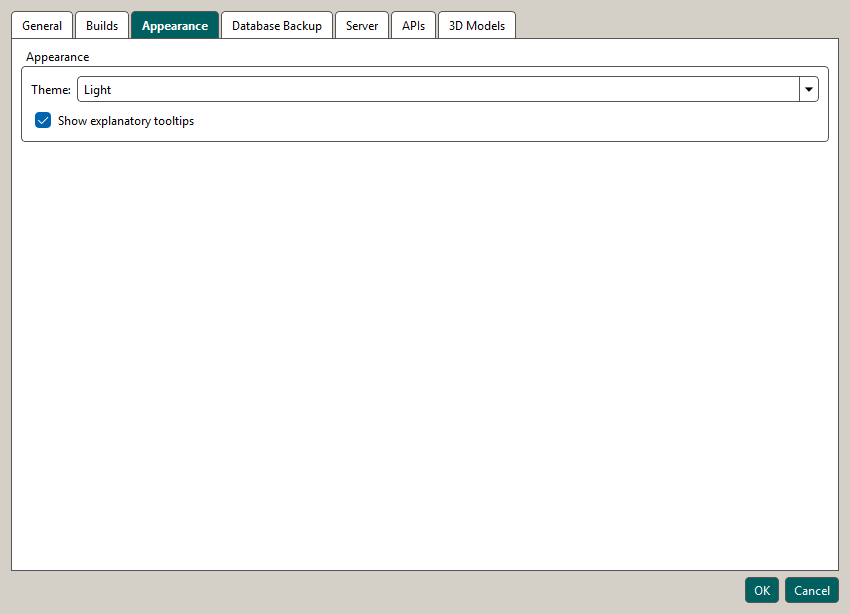
The Appearance page controls BrickSuite's visual theme. Theme changes are applied immediately so you can evaluate the result while the Settings dialog is open. If you cancel the dialog, BrickSuite restores the previous theme.
The selected theme is retained for future BrickSuite sessions. Theme selection affects only the application's presentation; it does not alter Storage, inventory, Builds, or other workshop data. Most screenshots in this Help system use Dark theme, so colors may differ when another theme is selected.
The Database Backup page configures BrickSuite-managed automatic backups. Automatic backups are disabled by default. Choose a Backup root, a supported hourly/daily frequency, and how many automatic backups to retain, then enable scheduling when you are ready.
BrickSuite appends a folder for the current database schema automatically:
<backup root>/v<schema version>. A schema change uses a new directory;
BrickSuite does not move or delete earlier-schema directories.
Automatic filenames use a UTC timestamp, such as
BrickSuite_AutoBackup_v<schema version>_YYYY-MM-DD_HHMMSS.db. Settings displays backup and due
times in your local time.
Backup Now runs the same automatic pipeline immediately, even when scheduling is disabled or a failed scheduled attempt is still within its retry interval. BrickSuite creates a read-only health check of the live database first. The automatic pipeline proceeds only when the full integrity check is healthy and the foreign-key check has no violations. It then creates a SQLite snapshot, verifies database integrity and the current schema version, publishes the final automatic filename, and only then applies retention.
If the live database fails either pre-backup health check, BrickSuite skips the automatic backup and preserves every existing backup. If a check cannot complete because the database is busy, locked, or unavailable, the attempt is deferred without treating the database as corrupt. Use Tools → Database Status & Integrity for detailed diagnostics. The manual File → Backup Database command remains available as an explicit preservation workflow.
Frequency choices are 1, 4, 8, or 16 hours; 1 or 2 days; and 7 days. The default is Every 1 day. After a failed scheduled attempt, retry eligibility is the shorter of the configured interval or six hours, with a one-hour minimum. Backup Now bypasses that retry gate.
If an explicitly configured destination is unavailable or not writable, BrickSuite reports the failure and keeps that destination unchanged. Scheduled failures do not interrupt normal use, and another scheduled attempt is bounded to avoid repeated retry and log noise. Existing verified backups remain untouched when creation or verification fails.
File → Backup Database remains a separate manual workflow: you choose its filename and destination, and automatic retention never applies to it.
The APIs page contains provider-specific configuration for Rebrickable and Brickset. Each provider has its own sub-tab, credentials, connection status, and connection test.
After a provider has been configured and successfully tested, BrickSuite can validate the saved connection again in later sessions. Provider status is displayed directly on its API settings page.
Enter your Rebrickable API key and choose Test Connection. When the test succeeds, Connection Status shows Connected.
Minimum Request Interval controls the minimum spacing between Rebrickable API requests. It remains the local minimum for this installation. When a Protocol 1.4 paired BrickSuite Remote is connected to a Host, participating installations coordinate a safer shared-public-IP interval. The effective interval may therefore increase as installations connect; one paired installation counts once even if it has multiple sessions. API keys always remain on their owning installation and are never sent through the BrickSuite Host. If the Host becomes unavailable, BrickSuite briefly retains the safer coordinated interval and then returns to the local configured interval. BrickSuite sends Rebrickable requests through a shared request queue to reduce the risk of exceeding provider request limits.
If Rebrickable returns HTTP 429 (Too Many Requests), BrickSuite stops further Rebrickable API requests for the current session rather than continuing to issue requests against a throttled connection.
Enter your Brickset API key and choose Test Connection. When the test succeeds, Connection Status shows Connected.
The Brickset page displays the provider-reported usage for the current day, BrickSuite's
effective usage, the configured Daily getSets Threshold, calls remaining before that
threshold, usage status, and the last successful usage refresh. Effective usage includes local
getSets calls made after the most recent provider report. Usage refresh is demand-driven;
BrickSuite does not poll Brickset in the background. Same-process usage changes can update an open
Settings dialog, while activity from another BrickSuite installation is reconciled when this
installation next refreshes provider usage.
When Brickset is connected and is within the configured threshold, supported Set Details workflows can use Brickset enrichment. This can provide additional information such as theme and subtheme data, availability, ratings, instruction information, additional-image counts, and a provider link.
If Brickset usage cannot be verified safely, or the configured daily threshold has been reached,
BrickSuite conservatively avoids additional charged getSets calls. Supported workflows
can fall back to Rebrickable. Instruction retrieval is independent of the getSets
threshold.
Brickset API keys and usage state remain local to each BrickSuite installation. They are not shared or coordinated through BrickSuite Host.
See Sets Catalog for the Set Details workflow.
API configuration and CSV imports serve different purposes. API connections provide provider-backed lookups and enrichment. Bulk reference-data operations use downloaded CSV files, and owned-parts or MOC CSV files are handled by their respective import workflows.
See Quick Start, Rebrickable Import, MOCs, and Sets Catalog for those workflows.
Choose Apply to commit changes without closing, or OK to keep Settings changes and close the dialog. Enabling an eligible, due automatic-backup policy queues its normal background pipeline only after the policy is committed. Choose Cancel to close without keeping changes that have not already been committed by the applicable setting behavior. Saved preferences are retained for future BrickSuite sessions.
Press F1 for the focused Settings area. Database Backup, Server, Builds, and 3D Models route to their dedicated topics; other pages use Settings Help. Settings stays open.
Application preferences and database content are separate concepts. Database Backup / Restore protects the BrickSuite database. See Backup / Restore.
Quick Start | BrickSuite Server | Sets Catalog | Backup / Restore | Application Log | Troubleshooting
Use the 3D Models tab to select and validate an installed LDraw library. The selected folder and validation status are local to this BrickSuite installation. Auto Fit permits supported exports to use a ManufacturingMesh only when one compatible managed Verified Fit Profile resolves unambiguously; it is off by default. See LDraw 3D Models for identity, loading, preparation, and export details.
Appearance → Show explanatory tooltips is enabled by default. Disable it to suppress hover popups; status text and F1 Help remain available. Apply or OK saves this preference for future sessions.