Backup / Restore
Remote Client backups: backing up a computer configured as a BrickSuite Host Client protects that device's local database and catalogs; it does not back up the Host's authoritative workshop data. Run the Host database backup workflow on the Host computer.
Create a manual backup
- Choose File → Backup Database....
- Select a destination and filename outside the live application-data location.
- Confirm the operation and wait for its completion message.
- Retain important copies on a separate physical or synchronized storage device.
Manual Backup is the explicit preservation workflow and remains independent of the automatic-backup policy. Automatic retention never removes manual files.
Automatic verified backups
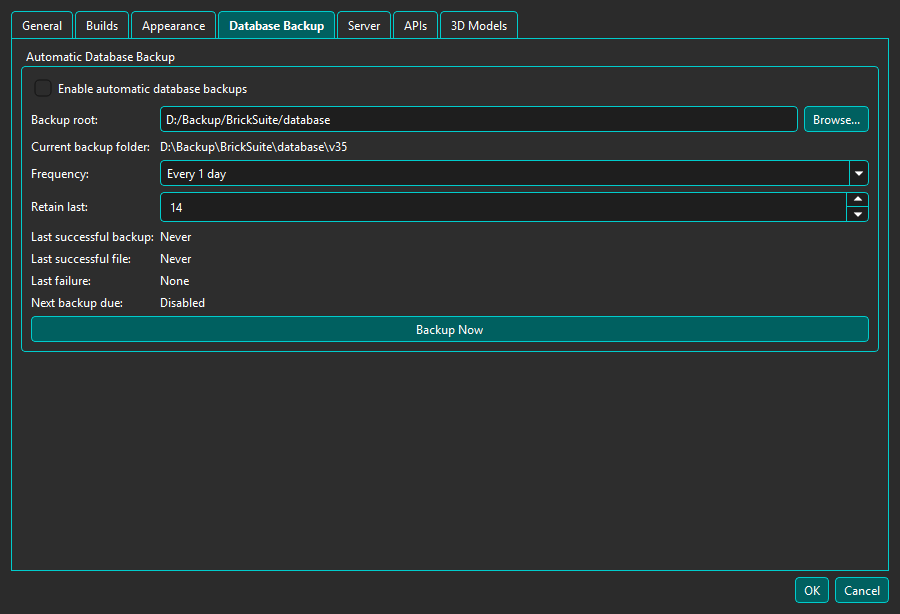
Under Settings → Database Backup, select a backup root, frequency, retained count, and enable scheduling. Policy changes take effect only after Apply or OK. Recognized backups are stored beneath <backup root>/v<schema version>, keeping different database formats separate.
Before Backup Now or a scheduled attempt, a worker-owned database connection consumes the full integrity_check and foreign_key_check results. A healthy source proceeds to SQLite snapshot creation; the snapshot is then reopened and verified before publication. Only after all of those stages pass may retention remove older recognized automatic backups.
Backup Now uses this same health and verification pipeline. It works while scheduling is disabled and bypasses the scheduled failure retry gate, but it does not enable scheduling.
When an automatic attempt fails
- A confirmed integrity problem or foreign-key violation skips snapshot and retention and preserves every existing backup.
- A busy, locked, open, or query failure is recorded as unsuccessful/deferred, not as confirmed corruption.
- A snapshot or verification failure does not update Last Successful and does not run retention.
Open Tools → Database Status & Integrity and the Application Log for details.
Restore a database
- Stop active editing and choose File → Restore Database....
- Select the intended BrickSuite database backup.
- Review the warning and identified source before confirming.
- BrickSuite validates the candidate, enters Host Maintenance, waits for active Host operations, and creates a verified pre-Restore safety backup.
- BrickSuite stops Host/database services, installs and verifies the restored database, then closes. Reopen BrickSuite before editing data.
Connected Remote clients are disconnected during Restore. After BrickSuite restarts they refresh Host-backed data automatically if the authoritative database changed. Pairing and endpoint settings are not changed by Restore.
BrickSuite verifies a backup before restoration. Restore currently requires the backup schema version to exactly match the running application's schema version; older or otherwise mismatched schemas are rejected rather than silently migrated.
A backup is not a repair. Copying a damaged live database preserves its current state but does not correct integrity or foreign-key problems. Keep the live file, existing backups, and logs intact while following recovery guidance.
Database Status & Integrity | Settings | Application Log | Troubleshooting