Choose Tools → Import Rebrickable Data Files... to scan a folder containing official
Rebrickable .csv or .csv.zip bulk downloads. BrickSuite recognizes all
twelve datasets: Themes, Colors, Part Categories, Parts, Elements, Part Relationships, Sets,
Minifigs, Inventories, Inventory Parts, Inventory Minifigs, and Inventory Sets.
The scan validates discovered files and their dependencies before enabling Import. Missing datasets are optional for a partial run; invalid or ambiguous files require attention. Large-file work runs on a worker-owned database connection with visible progress and cooperative cancellation. Each dataset has its own transaction, so a failed or cancelled dataset rolls back without undoing earlier datasets that already completed successfully.
Rebrickable Inventories and their child files provide historical Set revisions, Part/Color composition, included Minifigs, and contained Sets. After a complete composition run, BrickSuite selects the highest active Rebrickable revision for each Set as preferred. Set Details and new Set Builds use that preferred local composition when available, with the existing Catalog Parts List as fallback. Spare rows remain catalog metadata but are excluded from required Build pieces. Existing Builds remain unchanged snapshots.
Minifig-owned Inventory Parts populate the local Minifig parts list. Set and Minifig Details display available local composition automatically without requesting the API. Their Get Parts from Rebrickable... and Import Parts List... buttons remain available for explicit refresh or replacement. Elements preserve exact Rebrickable Element ID to Part-and-Color identity mappings; they do not create alternate Part numbers.
BrickSuite can use an owned-parts or parts-list CSV exported from Rebrickable to add, replace, subtract, or compare loose inventory in My Inventory. Every operation is previewed first so you can review its effect before changing BrickSuite inventory.
From My Inventory, choose the Import CSV button and browse to the Rebrickable CSV you want to use. Choose the operation before continuing.
BrickSuite provides four operations:
For inventory-changing operations, choose the destination Storage location and the Condition and Ownership values that apply to the imported parts. Then choose Preview.
When a Rebrickable parts-list filename corresponds closely to an existing Storage location, BrickSuite can use that information to help select the destination. Always verify the Storage field before continuing. An unambiguous filename-derived destination takes precedence over BrickSuite's last successful destination remembered for the current workspace and session. Compare Only and cancelled or failed imports do not update that remembered destination.
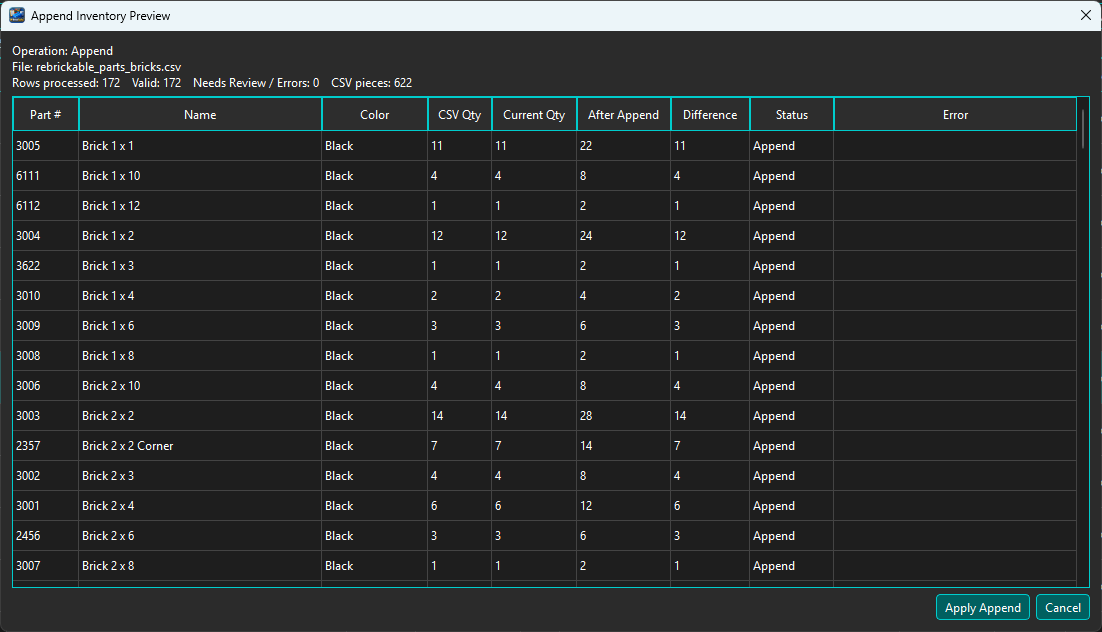
The preview shows the CSV quantity, current BrickSuite quantity, the projected result for the selected operation, the difference, status, and any validation error.
For an Append operation, After Append shows the quantity that will exist after the CSV quantity is added. The preview button changes to an operation-specific action such as Apply Append.
Compare Only is intended for reconciling a Rebrickable parts list with the corresponding BrickSuite inventory without changing BrickSuite.
The comparison identifies the Rebrickable quantity, BrickSuite quantity, Difference, and the action needed to make Rebrickable agree with BrickSuite.
The Action column can show:
The summary above the table reports compared rows, matches, the number of rows/pieces that would need to be appended to Rebrickable, the number that would need to be subtracted from Rebrickable, and any errors.
The Compare Only preview can create two reconciliation files:
These files let you make the corresponding changes on the Rebrickable side while keeping the comparison itself read-only in BrickSuite.
When an Append, Replace, or Subtract preview is correct, choose its operation-specific Apply button. BrickSuite performs the previewed changes and reports the result.
If the preview contains invalid rows or the operation encounters a genuine failure, review the reported error information rather than assuming all CSV rows were applied.
After an inventory-changing operation, return to My Inventory and filter by the applicable Storage location or search for one of the affected parts.
The resulting records appear with their part/color quantities, physical Storage location, Manufacturer, Condition, and Ownership values just like inventory entered manually.
Inventory-changing Rebrickable CSV operations are recorded in BrickSuite's inventory history. History can include the operation, quantity, Storage information, and source CSV filename. This makes it possible to trace how inventory entered or changed within the Workspace.
Choose View History from an inventory row's Actions menu to inspect those events.
parts.csv
  Updates Parts Catalog reference data.

sets.csv
  Updates Sets Catalog reference data.

part_relationships.csv
  Updates part relationship reference data.

Owned-parts / parts-list CSV
  Adds, replaces, subtracts, or compares loose inventory.

MOC CSV
  Supplies part requirements for a MOC Build.
The catalog CSV files maintain BrickSuite's local reference data. An owned-parts or parts-list CSV represents physical inventory or a comparison source. A MOC CSV represents Build requirements rather than loose inventory.
This topic covers both global Rebrickable catalog/composition imports and separate loose-inventory operations. Catalog imports define reference data; only an explicit Inventory import records owned pieces. The provider-aware import workflow also supports BrickOwl order receiving with a preview and transactional history. Rebrickable catalog/composition data, BrickLink external identifiers, and physical Manufacturer provenance are distinct concepts.
My Inventory | Storage | Parts Catalog | Quick Start | MOCs