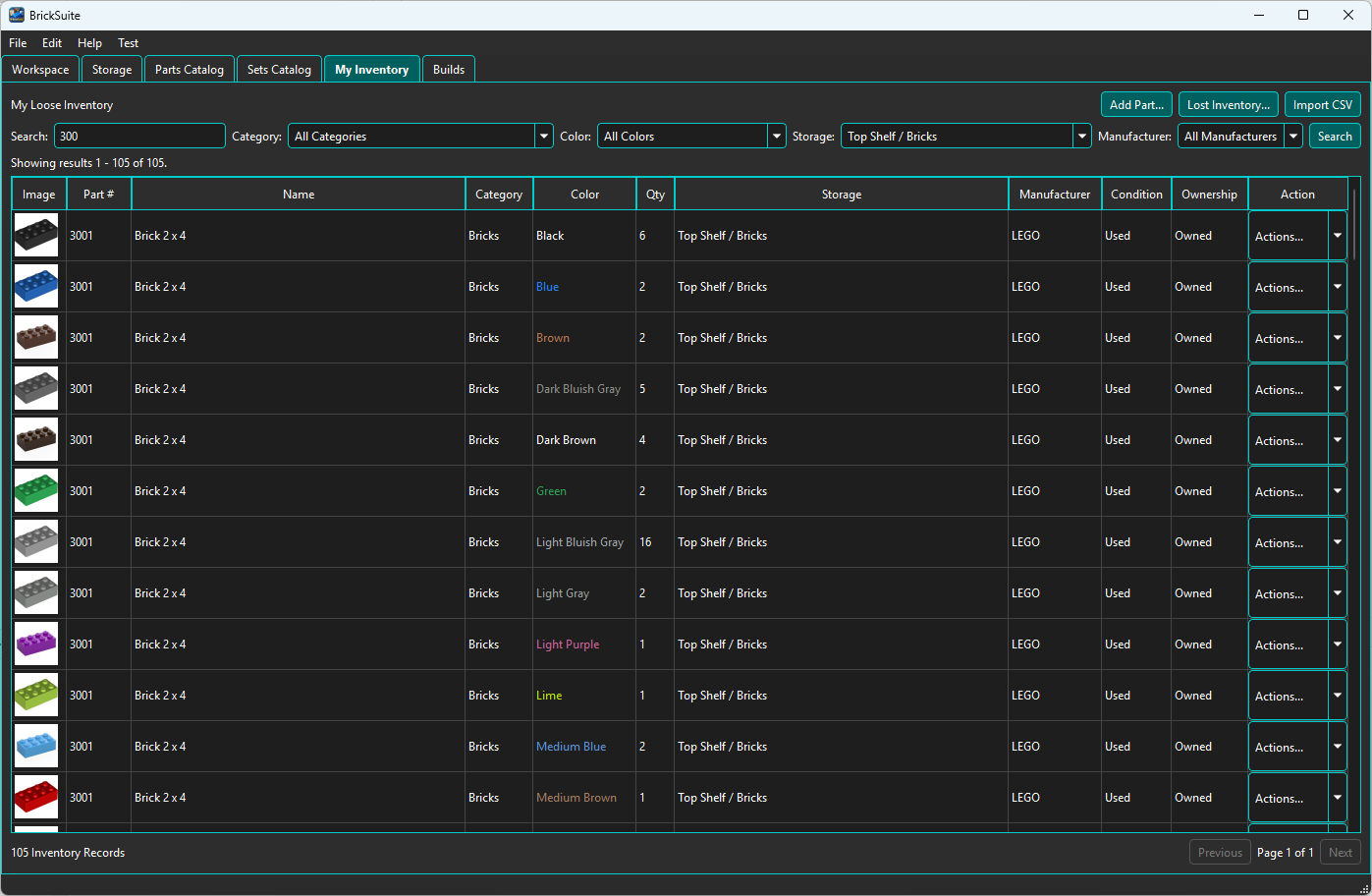
My Inventory tracks loose physical pieces. A row identifies an exact Part and Color together with quantity, Storage, Manufacturer, Condition, and Ownership.
Enter a Part number or name in Search, optionally choose Category, Color, Storage, or Manufacturer, then choose Search. Filters combine. Choose the corresponding All... value to remove a filter.
If Add Part is opened while a specific Storage filter is active, that visible filter becomes the initial destination. Otherwise BrickSuite may reuse the most recent successful Add/import destination for this Workspace during the current application session. Closing BrickSuite clears this session memory.
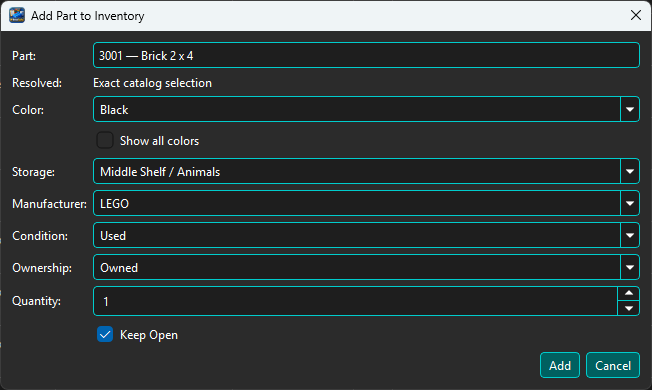
Show all colors includes colors beyond those currently associated with the resolved Part.
Remember Part retains the resolved Part for the next entry. Keep Open controls whether the dialog stays open after a successful addition. The options are independent: one reuses identity and the other reuses the window.
Add Part's Color list shows a square swatch of the stored catalog color beside its name. Swatches stay the same in Light and Dark themes. Colors with missing or invalid hex data remain selectable without a swatch.
Find Sets Using This Part is a read-only discovery handoff; it does not reserve or move Inventory.
Use Parts Catalog for complete database search, categories, colors, external identities, relationships, and Details. Use Part Reference for visual family browsing and supported dimension grids. Both can send an exact local identity to Add Part.
Export CSV... exports every Inventory record matching the current My Inventory filters, not only the visible page. All Locations includes matching records across every Inventory Storage location; selecting one Storage location preserves the same exact filter used by the table.
The export designer shows the matching count and filter summary. Select fields, change their order, and review a bounded preview before saving the complete UTF-8 CSV. BrickSuite remembers Inventory export fields separately from Missing Parts export settings.
Import CSV supports previewed Rebrickable Append, Replace, Subtract, and Compare Only. Select the operation and physical attributes, review projected quantities and errors, and only then apply. Compare Only never changes BrickSuite. When connected as a Remote Client, perform rich Inventory CSV imports on the Host computer; connected Clients refresh after the Host commits the import.
Supported BrickOwl order receiving also produces a preview with identity and color status. Committing valid rows is transactional and records history; cancelling makes no changes.
For an eligible Complete, Assembled item, use Disassemble to Inventory... from My Collection. Review the return rows, use Default Destination and Apply to All, then optionally direct individual rows to different Inventory-capable leaf locations with Move To. Catalog-backed Sets and Minifigs use required catalog composition and exclude optional catalog spares. Build-linked Sets, Minifigs, and MOCs use their completed Build's actual requirement, substitution, pulled-quantity, Manufacturer-provenance, and tracked-spare return plan. BrickSuite records Inventory History and atomically marks the Collection item Unassembled; the linked Build also becomes Disassembled.
Manufacturer records who made the physical piece and is preserved through movement and Build workflows. Rebrickable and BrickLink identifiers describe catalog identity instead; they are not Manufacturer choices.
When connected to an authenticated BrickSuite Host, Add, Edit, Move, Correct, Remove, Mark Lost, and Mark Found are available only when the Host advertises the exact permission for that action. The Host remains authoritative and records the same Inventory History used by local workflows. Bulk Inventory import remains Host-only.
If Host data changed after a dialog opened, BrickSuite rejects the stale change and refreshes the authoritative Inventory rather than overwriting it. A timeout or disconnect can leave the outcome unknown after the Host may have committed the operation. Keep the dialog open and use its safe retry; BrickSuite reuses the same mutation identity so the Inventory change is not applied twice.
Rebrickable Import | Lost / Found | Storage | Lists & Reference Data
To populate loose stock directly from a catalog Set, open the Sets Catalog or Set Details and choose Use Set for Parts.... This is a separate Set workflow, not an operation in the Inventory entry dialog.