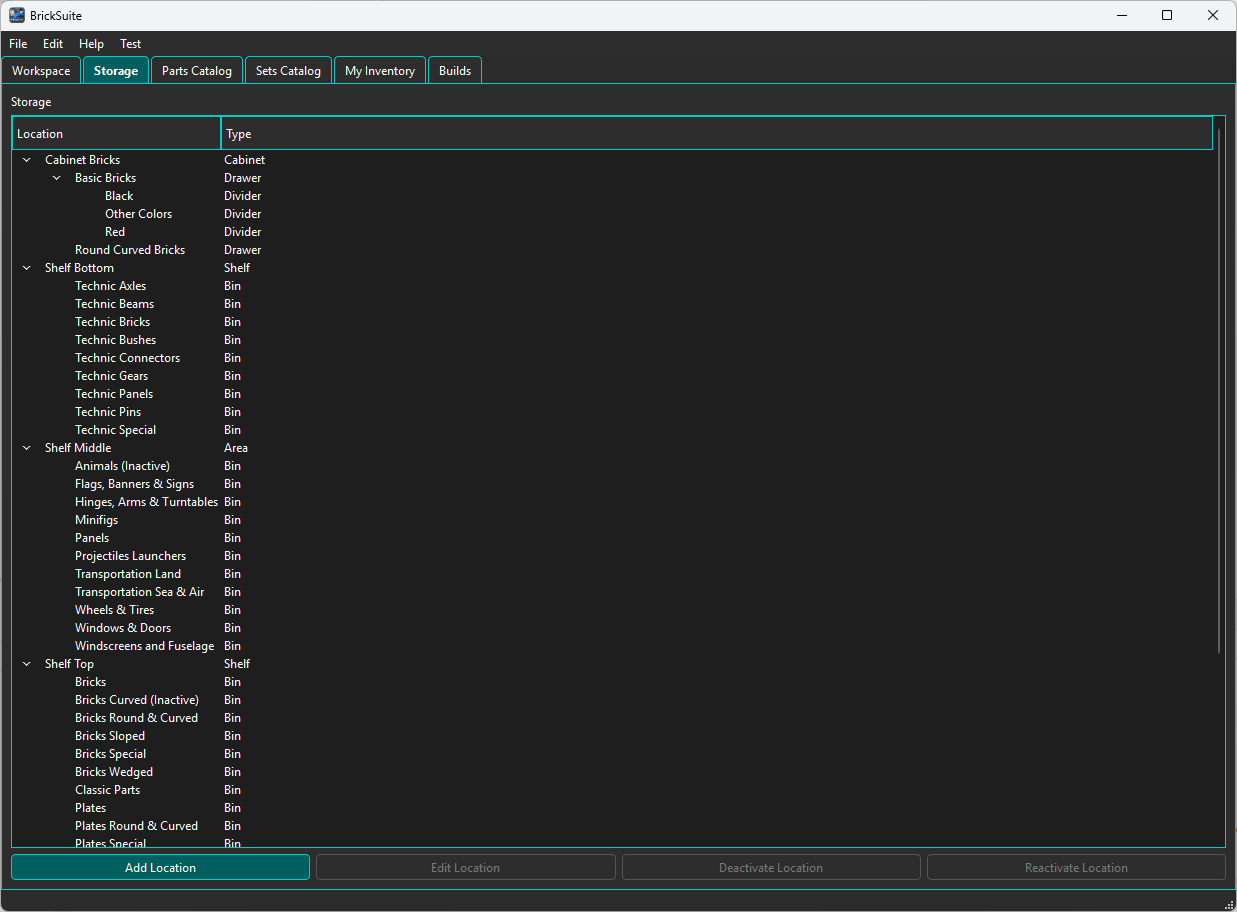
Storage is BrickSuite's digital representation of the places where your loose parts physically live. A useful Storage hierarchy should answer a simple question: Where do I go in the real workshop to find this part?
The hierarchy is intentionally flexible. You can model cabinets, shelves, drawers, bins, dividers, and other containers in the arrangement that matches your actual workshop.
The Storage page presents locations as a parent/child tree. Expanding a location reveals the locations contained beneath it. The Type column identifies what each location represents physically.
In this example, Workshop contains a Building stock Box with Inventory-capable bins and a tray. Display shelf is a Collection destination. BrickSuite does not require every branch to have the same depth.
Inactive locations are hidden by default. Enable Show Inactive to include them in the hierarchy. They are marked (Inactive) and are no longer treated as active storage destinations.
BrickSuite provides the following location types:
Area, Cabinet, Shelf, Case, Box, Drawer, Bin, Tray, Bag, Compartment, and Divider.
The type describes the physical location; it does not impose a rigid hierarchy. For example, a Cabinet can contain Drawers, while a Shelf might contain Bins directly. Choose the type that best describes the real container.
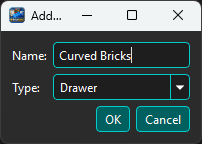
Select the location that should contain the new location, when applicable, and choose Add Location. Enter a descriptive name and select the physical location type.
Names should make sense when viewed in the hierarchy. Category names such as Curved Bricks, Technic Beams, or Wheels & Tires can be useful when a physical drawer or bin is dedicated to that group of parts.
Choose OK to create the location or Cancel to leave Storage unchanged.
Select an existing active location and choose Edit Location. BrickSuite lets you update the location name, type, and parent relationship.
Changing the parent lets the digital hierarchy follow a physical reorganization without requiring the location to be recreated. For example, a drawer can be moved under a different cabinet while retaining its identity in BrickSuite.
BrickSuite uses deactivation instead of simply deleting storage locations. This protects inventory integrity and preserves historical references to locations that existed previously.
A location cannot be deactivated while loose inventory is still stored there. If you attempt to do so, BrickSuite explains why the operation cannot continue:
Move the loose inventory to another active storage location first, then return to Storage and deactivate the old location.
BrickSuite also protects hierarchical integrity: a parent location cannot be deactivated while it still has active child locations. Reorganize or deactivate the child locations first.
Enable Show Inactive to reveal inactive locations, which are identified with (Inactive). When an inactive location is selected and can be used again, choose Reactivate Location to return it to active service.
This makes temporary storage changes reversible without losing the history associated with the location.
When connected to a compatible BrickSuite Host, Add Location, Edit Location, Deactivate Location, and Reactivate Location operate on the Host's Storage hierarchy. Each action is available only when the Host advertises that exact capability. Storage types and parent locations shown by the dialog use Host identities rather than similarly named Client-local reference data.
The Host remains authoritative. It rejects invalid parents, hierarchy cycles, inactive types, and attempts to remove a capability or deactivate a location while affected Inventory, Collection items, or active child locations remain. Deactivation is reversible and never cascades or deletes the location. Choose from the standard Storage Types when adding or editing a location; there is no separate user editor for the standard type catalog.
If another user changes a location after you open Edit, BrickSuite rejects the stale edit rather than overwriting the newer Host data. If a connection loss or timeout leaves the result unknown, reconnect and use Retry Safely; BrickSuite reuses the same mutation identity so a committed change is not applied twice.
Storage and My Inventory work together. Storage defines the physical destinations; My Inventory records which loose parts are stored in those destinations.
When adding, importing, editing, or moving inventory, choose an appropriate active storage location. If the workshop is reorganized later, use BrickSuite's inventory movement workflow so the database history reflects where the parts went.
See My Inventory for adding, editing, moving, filtering, and reviewing loose inventory.
A simple hierarchy might look like:
Cabinet Bricks
  Basic Bricks
    Black
    Other Colors
    Red

Shelf Bottom
  Technic Axles
  Technic Beams
  Technic Bricks
  Technic Gears
Another workshop might organize the same parts very differently. BrickSuite's goal is not to prescribe the organization; it is to create an accurate digital twin of the organization you actually use.
Getting Started | My Inventory | Rebrickable Import
Each location can allow Inventory, Collection, or both. Inventory-capable leaf locations appear as destinations for loose parts. Collection-capable leaf locations appear for physical Sets, Minifigs, and MOCs in My Collection.
A parent may have neither capability when it is used only to organize eligible descendants. Capability settings determine where a location appears; a Collection-only location is never offered as a loose-inventory destination.
Box is a normal Storage Type and can be used within the same hierarchy as a Bin or Drawer. Its type does not override destination rules: loose Inventory requires an active, Inventory-capable leaf with no child locations. Parent locations organize their children.