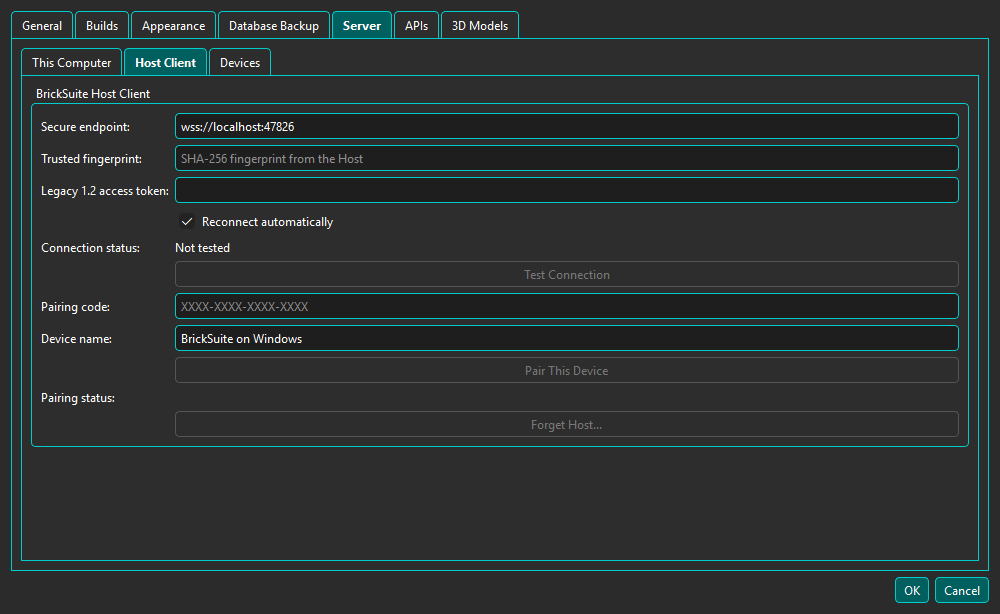
BrickSuite Server lets another BrickSuite installation establish a secure connection to the computer that owns the authoritative workshop database. A connected Client can browse Host Workspaces, Storage, Inventory and History, Builds and Pulling, My Collection, and shared user Part Reference customizations. Supported changes are performed authoritatively by the Host, require the advertised capability, and are protected against conflicts. If a response is uncertain, BrickSuite offers a safe retry of the same operation.
The built-in Part Reference manifest remains local and is usable immediately; authenticated Host customizations are overlaid and can be managed remotely when permitted. Set, Minifig, and Part catalogs and image caches remain local to the Client.
The Client chooses its Host Workspace independently. This does not change the Workspace selected in the Host computer's UI. The selection is remembered using the trusted Host certificate identity and validated again after reconnecting.
While connected, successful changes made on the Host notify authenticated Clients. Affected views that are visible refresh automatically; hidden views are marked for one refresh when next shown. Notifications describe what became stale and do not copy or cache operational records permanently on the Client.
In Builds, a Client can create and edit Builds, manage requirements and allocations, pull pieces, complete or cancel active work, archive eligible Builds, and disassemble completed Builds when the Host advertises the corresponding capabilities. Provider/file imports and pull-list import or reconciliation remain Host-only.
The Storage tab supports Host-authoritative location changes using the standard Storage Types. My Collection and Collection Details support the available add, edit, archive, restore, and remove workflows. User Part Reference customizations can also be added or removed through the Host.
Connections use WSS/TLS. Each Host generates its own persistent certificate and private key. The Client verifies its SHA-256 fingerprint. Protocol 1.3 pairs each Remote with a unique Host-issued device ID and credential, then uses that credential in the nonce-based HMAC-SHA-256 challenge response. Credentials are stored through the operating-system credential service.
The fingerprint identifies the Host TLS certificate. Server Settings also shows certificate health and validity dates, with an advance warning during the final 180 days. BrickSuite refuses to run the Host with a corrupt, mismatched, expired, or not-yet-valid stored identity instead of silently replacing an established identity.
Regenerate Host Identity explicitly creates a new certificate and private key. Its fingerprint changes, a listening Host restarts, and existing Remotes reject the Host until the new fingerprint is compared and trusted. Regeneration does not change the database, data epoch, or shared access token.
Pairing is disabled by default. Pair New Device creates a 64-bit random code that expires after five minutes and can be used once. Five incorrect attempts disable that pairing attempt, with a short increasing delay between attempts. The code and device credential are never written to logs or ordinary settings.
Normal Host and Remote restarts preserve paired-device authentication. Database Restore changes the data epoch but does not restore or revoke the Host-local device registry or operating-system-protected credentials. Regenerating the Host identity preserves device credentials, but every Remote must explicitly verify and trust the new fingerprint before its existing credential is sent again.
Protocol 1.2 continues to use one shared access token for legacy Remote installations using the legacy authentication workflow. Generating or rotating it restarts Host networking, so all current Remote sessions are disconnected. Protocol 1.3 paired devices keep their per-device credentials and can reconnect normally; Protocol 1.2 legacy clients must use the newly generated shared token.
Use Edit → Settings → Server → Devices on the Host to review paired Protocol 1.3 devices. The list shows whether each device is connected, disconnected, revoked, or unusable, together with its most recent successful authentication and reported Client version/platform. Device names are descriptive and do not grant access.
Rename changes only the Host's display name for a device. Revoke immediately disconnects every session authenticated as that device, removes its protected credential, and prevents it from reconnecting until it pairs again. The Remote retains its endpoint, trusted Host fingerprint, reconnect preference, and device name so it can use a new one-time pairing code without trusting the unchanged certificate again. Revoke All Devices applies that action to every Protocol 1.3 device without changing the Host certificate, data epoch, database, or legacy Protocol 1.2 access token.
On a Remote, Forget Host removes the pinned fingerprint, paired device ID and credential, legacy token, remembered Host Workspace, and retained data-epoch state for the configured Host. It does not revoke the Host-side device record; use the Host's Devices tab when access must be withdrawn.
The Server runs only while BrickSuite is running. A listener failure does not prevent local use.
The Host operator can use Edit → Settings → Server → Enter Maintenance to create a safe boundary for database maintenance. BrickSuite immediately rejects new Host-backed reads and changes, lets operations that were already admitted finish, and enters Maintenance only after the Host read and write queues are idle. If draining takes too long, maintenance entry is cancelled and normal admission resumes.
While Maintenance is active, Host-local operational changes are unavailable and Remote Clients show Host Maintenance. Client-local Parts, Sets, and Minifigs catalogs, cached images, and built-in Part Reference content remain usable. Exiting Maintenance reopens Host operations and causes connected Clients to refresh Host-backed data.
wss://host.example:47826.On the same LAN, use a private address or hostname reachable there. From outside the home network, use the router's public address or a public/dynamic hostname and manually forward the configured port to the Host's LAN address. Public addresses can change, so dynamic DNS may be useful.
Confirm that BrickSuite is running on the Host, the hostname/IP and port are correct, the Host firewall permits inbound traffic, and router forwarding is correct for Internet access. A changed fingerprint or token fails closed and must be explicitly updated. Never disable TLS verification.
Settings | Troubleshooting | Help Home
BrickSuite v0.4.0 uses Protocol 1.5; availability depends on the connected Host's advertised capabilities. From My Inventory uses Host workshop data, while Using Selected Parts uses local catalogs. Use Set for Parts... remains unavailable on Remote Clients. Standard Storage Types are selected when editing locations, not administered through a separate type editor.