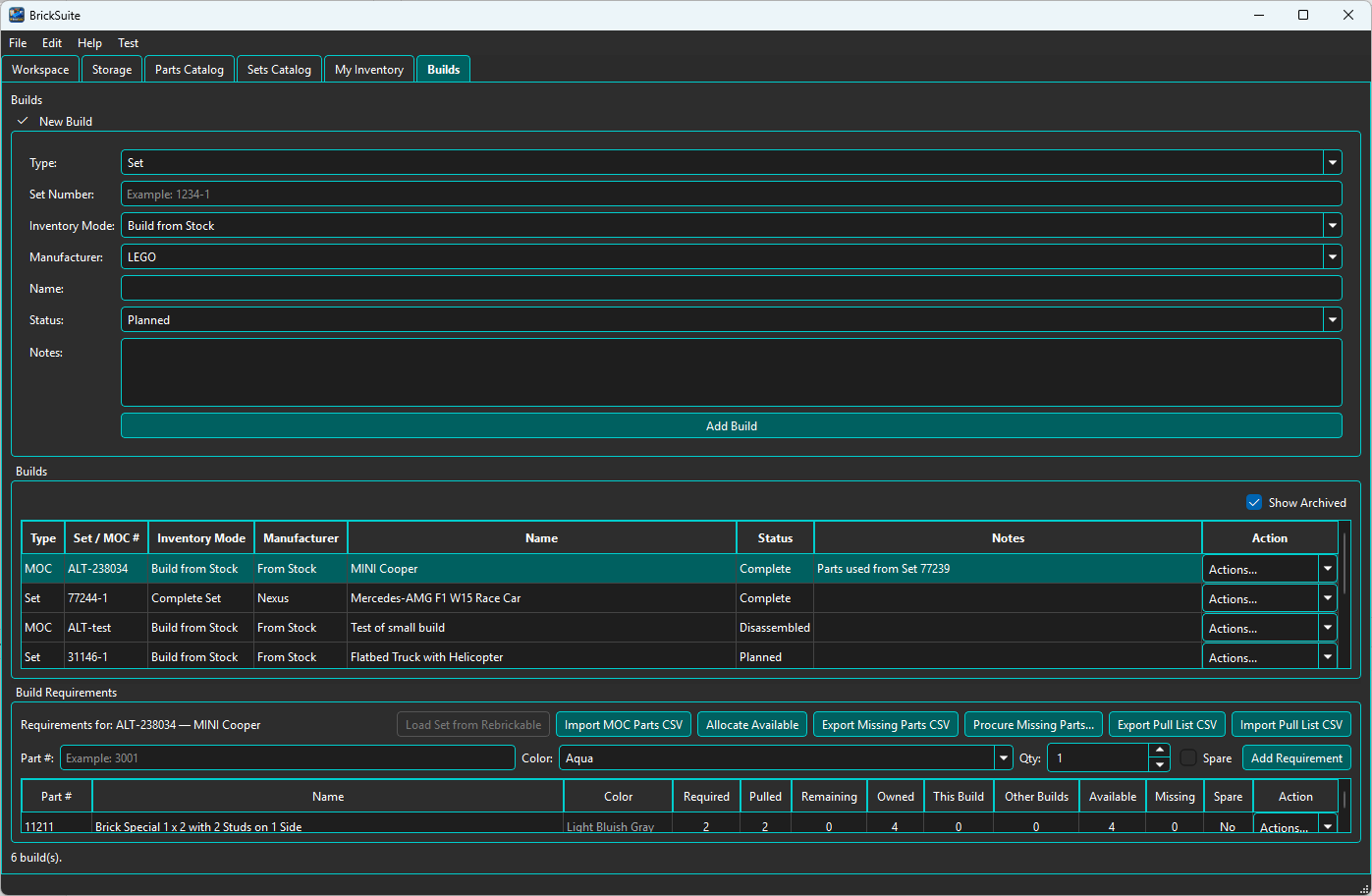
A Build is a planned or assembled project with persistent requirements, allocations, pulls, and lifecycle history.
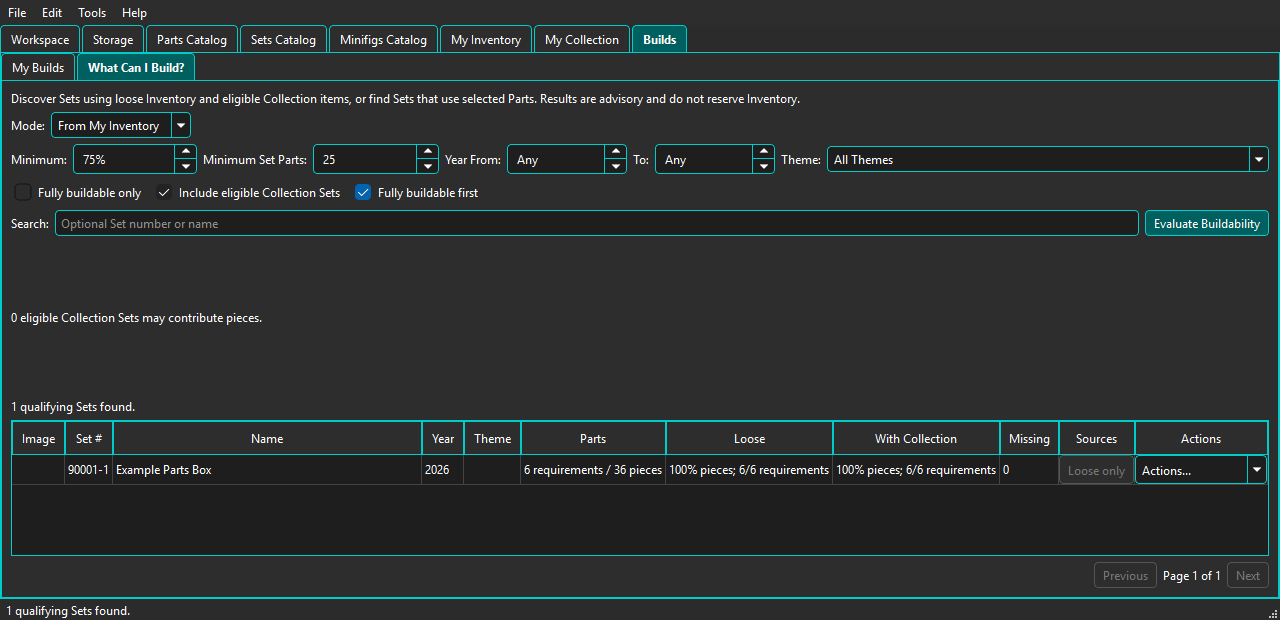
Open the What Can I Build? sub-tab. From My Inventory compares exact Part and Color requirements with eligible loose Inventory after current Build allocations. Choose a minimum buildability percentage and Minimum Set Parts; the latter counts required non-spare pieces from effective composition, so setting it to 1 allows tiny and one-piece Sets again. Optional Year From/To bounds use catalog years. All Themes removes Theme filtering; selecting a Theme includes that Theme and its active descendants.
You may require fully buildable results, rank them first, and decide whether complete opted-in Collection Sets may be considered as advisory sources. Loose Inventory is applied first. The table shows loose and Collection-assisted percentages separately; open Missing Parts or Sources for current calculation details.
A Collection Set participates only when it is active, Assembled, marked Complete, opted in through Consider for What Can I Build, and has composition. Opted-in items that are archived, not Assembled, not Complete, or lack composition remain opted in but are reported as currently ineligible. Condition and Location remain independent. Collection pieces are advisory: discovery never reserves, consumes, disassembles, or changes a Collection item. After Disassemble to Inventory..., the Unassembled item no longer contributes an advisory source; its loose Inventory pieces are counted instead.
Using Selected Parts finds Sets containing one or more chosen Parts. Resolve each Part, choose Any Color or an exact Color, enter the minimum quantity, and add it to the criteria list. You can also launch this mode from a Part Reference card, Parts Catalog row, or My Inventory row. Part Reference and Parts Catalog use Any Color; Inventory preserves the row's exact Rebrickable Color. Launching retains existing criteria, merges matching duplicates by quantity, and does not run the search automatically. All Selected Parts requires every criterion; Any Selected Part includes Sets satisfying at least one. Results are bounded by the Builds Settings limit and paged locally.
Stock means the model is assembled from loose inventory through allocation and pulling. Complete Set represents an intact physical Set and does not consume loose stock through that pipeline.
The New Build fields are arranged in two columns. Collapse New Build to give the Build list and requirements more room. Requirement actions appear in two rows below the selected Build summary; drag the divider between the tables to adjust their space.
For a Set or Minifig, first acquire its composition in Catalog Details and choose Create Build From Stock.... BrickSuite creates the Build and copies the current required non-spare Part/Color rows. This is a snapshot: later catalog imports do not rewrite the Build. For a MOC, use New Build and add or import requirements.
Select a Build and review each required Part, Color, Quantity, allocated quantity, pulled quantity, and shortage. Every row has its own logical requirement identity, even if another row happens to use the same Part and Color. The overview above shows the current requirement and allocation columns.
Edit a requirement to configure a deliberate replacement Part and/or Color. Allocation and pulling then use the effective substitute, while the original requirement remains the model's logical requirement. Clear or change the substitution only through the requirement workflow; BrickSuite does not infer substitutions from similar parts.
Open Missing Parts for the unfulfilled quantity after allocation. Review shortages and export the supported purchasing/wanted-list data. Procurement output does not itself receive inventory; acquired pieces still enter through Add Part or the appropriate receiving/import preview.
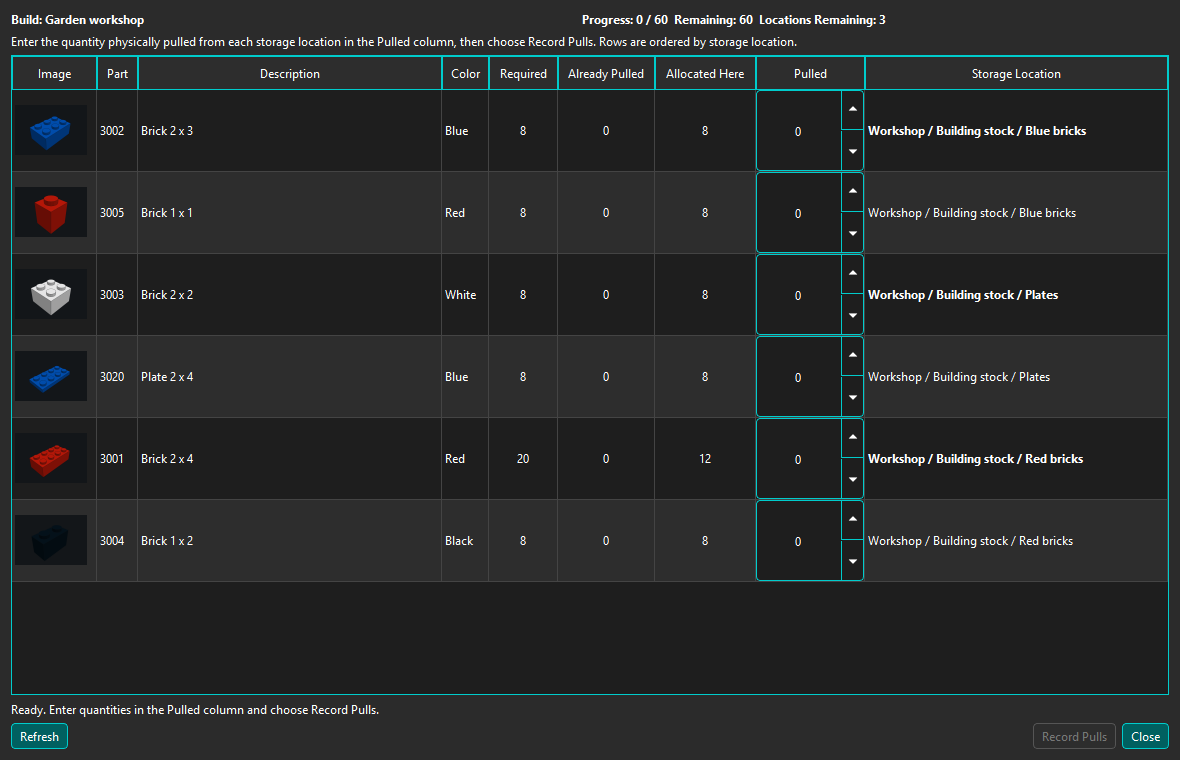
Choose Pull Build... when you are physically collecting pieces. Work through the displayed Storage/inventory rows and record the quantity actually pulled. Pulled quantity cannot exceed the linked allocation. Partial pulls remain visible so the session can continue later.
Pulling reduces loose availability through the Build workflow while retaining the exact requirement, source inventory, Storage, and Manufacturer provenance.
On a connected Remote Client, eligible Build-from-Stock Pulling is editable when the Host advertises Pulling write support. The Host validates and records the complete submission atomically, then connected Clients refresh from its authoritative state. Older or restricted Hosts remain read-only. If another user has changed the Pulling state, BrickSuite rejects the stale submission and refreshes instead of overwriting it. If the Host response is lost, BrickSuite reports that the outcome is unknown and offers a safe retry of the same submission after reconnecting.
Completion requires the Build's required quantities to be satisfied through its applicable workflow. Review outstanding allocation or pulled quantities before completing. Cancelling a Build releases supported outstanding commitments without rewriting its historical requirements or movements.
On a connected Remote Client, a Host that advertises the corresponding Build capabilities can create Set and MOC Builds, edit Build metadata, add/edit/remove eligible requirements, manage requirement allocations, allocate available Inventory, complete or cancel eligible Builds, disassemble completed Builds, store Complete Set spares, and archive or reactivate terminal Builds. Disassembly returns pieces to selected Host Storage locations; it is not deletion. Store Spare uses Host Inventory and records movement history. The Host validates Part, Color, Inventory availability, ownership, Storage, and expected state before committing each mutation. Stale state is rejected and refreshed rather than overwritten; a lost response can be retried safely with the original mutation identity. Set/MOC requirement-file imports, pull-list import/reconciliation, and catalog-driven Build creation remain Host-only.
Catalog spare rows are not required Build requirements for Create Build From Stock. Complete Set workflows can retain spare information and explicitly release applicable spare pieces to My Inventory. Optional catalog spares are not part of the Collection meaning of Complete.
For a supported completed Build, choose Disassemble, select valid destination Storage, review the actual returned quantities, and confirm. BrickSuite returns constituent pieces through recorded inventory movements and preserves Manufacturer provenance. A linked Collection item is synchronized with the disassembled Build lifecycle.
An eligible completed Set, Minifig, or MOC Build can use Add to Collection.... Afterward, View Collection Item opens its physical-instance record. A historical Set Build without set_catalog_id may use Link to Sets Catalog... for a deliberate exact link; BrickSuite never treats the displayed Set number as authoritative identity automatically.
Allocate Available | Missing Parts | MOCs | My Collection | Lost / Found