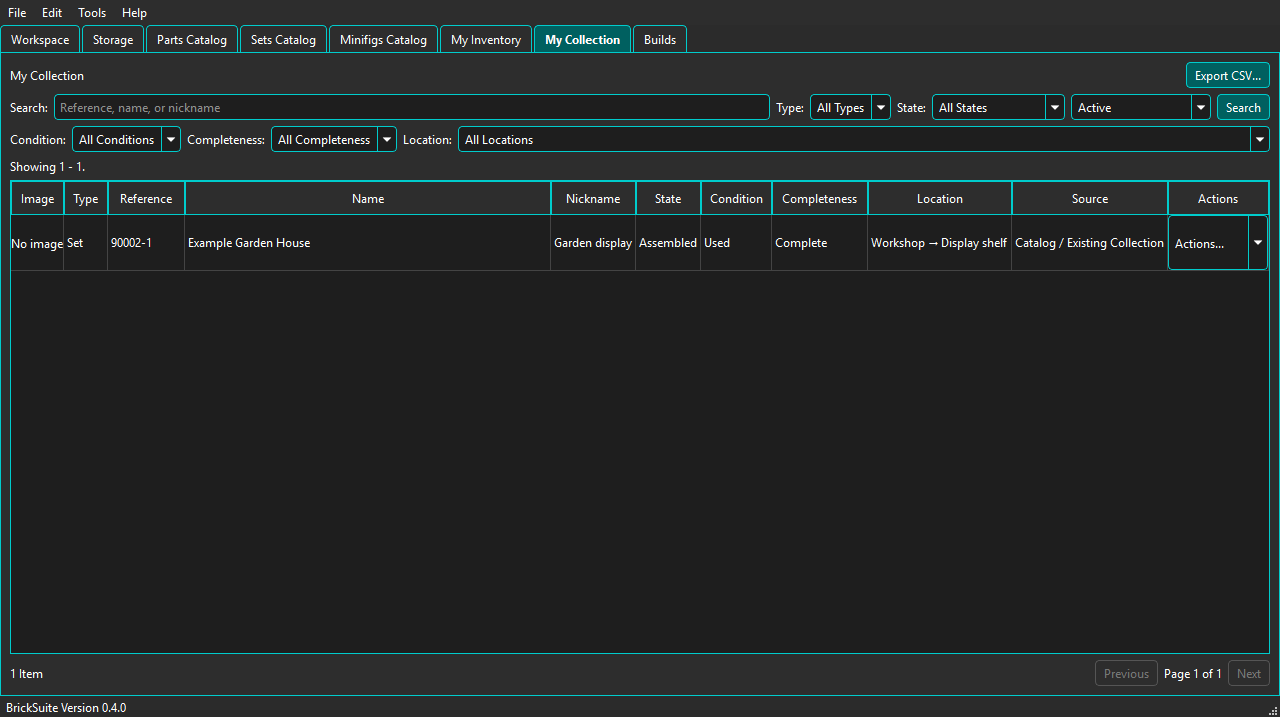
My Collection records individual physical Sets, Minifigs, and MOCs that you own. It is separate from My Inventory, which tracks loose pieces, and from Builds, which track planned and assembled projects.
Use Search and the Type, State, Condition, Completeness, Location, and Active/Archived filters to find an item. Choose Details / Edit to change its state, condition, completeness, Collection location, nickname, or notes.
These dimensions do not imply one another. For example, a Used item can be Assembled and Complete, or Unassembled and Complete; a Partially Assembled item is not automatically Incomplete.
Each physical copy has its own stable Collection record, so multiple copies of the same Set or Minifig may have different nicknames, notes, states, and locations. Archive items you no longer want in the active view; archived items can be found with the Archived filter and reactivated later.
Choose Export CSV... to export every Collection item matching the current Search, Type, State, Condition, Completeness, Location, and Active/Archived filters. Export is not limited to the visible page, and each physical Collection instance remains a separate row.
Choose the fields to include, arrange their column order, and review the bounded preview before saving. BrickSuite remembers Collection export choices independently from Inventory and Missing Parts exports. Notes and UTC Created/Modified timestamps are available as optional fields. Consider for What Can I Build exports the stored preference as Yes or No; it does not claim that an item is currently physically eligible.
Collection items may be unassigned or stored at an active, Collection-capable leaf location. Storage locations can support Inventory, Collection, both, or serve only as hierarchy containers.
Catalog-backed items show their Set or Minifig identity. Use Add to Collection in Set or Minifig Details to record an owned instance without consuming inventory. A completed Set, Minifig, or MOC Build may also be deliberately added from its Actions menu. The Build remains the historical record, one Collection item may reference it, and the operation does not change inventory or Build status. MOCs use their Build as their authoritative source.
An active Set, Minifig, or MOC that is Assembled and Complete offers Disassemble to Inventory... when BrickSuite has an authoritative physical return plan. Review the rows, choose a Default Destination and Apply to All, then optionally choose a different active Inventory-capable leaf destination in each row's Move To field. Every returned row needs a destination before disassembly can continue.
For a catalog-backed Set or Minifig without a linked Build, BrickSuite uses current required catalog composition and excludes optional catalog spare pieces. For a Build-linked Set, Minifig, or MOC, the completed Build is authoritative: the rows reflect its requirement snapshot, actual substitutions, pulled quantities, Manufacturer provenance, and any tracked spare pieces.
BrickSuite adds or merges the selected Part/Color quantities in loose Inventory, records Inventory History, completes the applicable Build lifecycle updates, and changes the linked Collection State to Unassembled atomically. Condition, Complete assessment, Collection location, nickname, notes, active status, and the Consider for What Can I Build preference remain unchanged. If validation or any write fails, none of those changes are saved.
When shared data comes from a BrickSuite Host, Add, Edit, Archive, and Reactivate are available only when the authenticated Host grants the matching capability. The Host resolves portable Rebrickable Set and Minifig identities, owns Build identities, and validates the selected Host Storage location. A stale edit is rejected so newer Host data is not overwritten.
With the Disassemble Collection Items capability, an eligible Remote item uses the same Disassemble to Inventory... workflow. The Host creates the authoritative return plan, validates every selected Host Storage destination, and performs the complete Inventory and Collection or linked-Build transition as one operation.
On a Protocol 1.5 Remote, Set items also expose Consider for What Can I Build when the Host grants that capability. This Host-authoritative preference follows the same advisory, non-consuming rules as local mode and is not offered for Minifigs or MOCs.
If a connection ends before BrickSuite can confirm a save, the dialog reports an unknown outcome. Use Retry Safely to resend the identical operation; BrickSuite reuses its mutation identity so a completed change is not duplicated. Archive is a reversible lifecycle change, not deletion.
Collection has no quantity field: create one item per physical Set, Minifig, or MOC. State, Condition, Completeness, and Location remain independent. Eligible opted-in Assembled Sets may be considered as advisory sources by What Can I Build; Unassembled items are represented by their loose Inventory instead.
Catalog additions default to Used with Unknown completeness. Additions from a completed Build default to Used and Complete because its regular Build requirements were satisfied; this does not assert that catalog spare pieces are present. Review and edit these values to match the physical item.
Disassembling from either Builds or the linked My Collection item uses the same completed Build return plan and synchronizes both records. This does not change Condition or turn Collection into a loose-parts source. A legacy Set Build must be explicitly linked to Sets Catalog before it can become an eligible catalog-backed Collection item.
Builds | Storage | Sets Catalog | Minifigs Catalog
Use Add to Collection to track an intact owned Set. When that recorded item becomes loose stock, use its Disassemble to Inventory... action. If a catalog Set never needs to be tracked intact, use Use Set for Parts... instead; it creates Inventory without a Collection item.