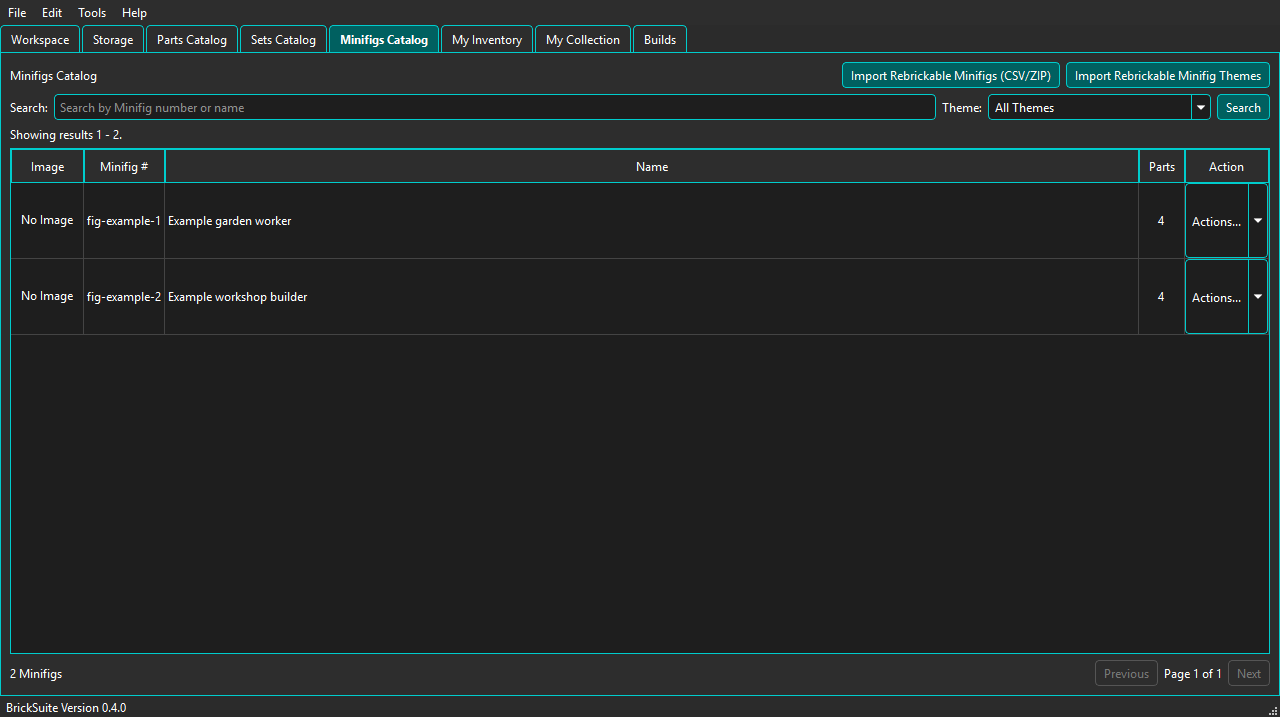
The Minifigs Catalog is BrickSuite's local reference catalog for Minifig identification. It shows the Rebrickable Minifig number, name, declared part count, and available catalog image.
Choose Import Rebrickable Minifigs (CSV/ZIP), then select either an extracted
minifigs.csv file or the ZIP downloaded from Rebrickable. BrickSuite can locate
minifigs.csv inside a nested archive folder.
A complete import updates existing entries and adds new ones. Entries absent from a later complete Rebrickable snapshot are deactivated rather than deleted, preserving their stable BrickSuite identities.
Search by Minifig name or Rebrickable number such as fig-005210. BrickSuite
queries one page at a time; use Previous and Next to browse larger result sets.
The page size follows the catalog result setting in Settings.
Choose Import Rebrickable Minifig Themes and select a directory containing exactly
one copy of each required Rebrickable download: themes.csv, sets.csv,
inventories.csv, and inventory_minifigs.csv. Each may be either the
direct CSV or its downloaded ZIP.
After import, use the Theme control with text search. Selecting a parent Theme includes Minifigs assigned directly to that Theme or any of its active descendants. Theme classification describes the Sets in which a Minifig appears; it does not import the Minifig's constituent parts.
Use Actions... → Details to view the selected Minifig's catalog metadata, provider
source, and local composition. A Global Rebrickable import can populate this composition from the
Minifig-owned rows in inventory_parts.csv. Existing local composition is displayed
automatically when Details opens; opening the dialog does not request parts from an API. Images
are downloaded asynchronously from the imported Rebrickable image URL and cached in BrickSuite's
dedicated Minifig image cache.
Open the intended Minifig's Details dialog and choose Get Parts from Rebrickable... for the convenient API workflow. A configured Rebrickable API key is required; configure and test it under Settings → APIs → Rebrickable.
API retrieval replaces the catalog Minifig's complete composition. If a composition already exists, BrickSuite asks for confirmation before replacing it.
Import Parts List... remains available as the offline/manual fallback. Select the Rebrickable Parts CSV or its downloaded ZIP. The selected BrickSuite Minifig is always the destination. Both manual buttons remain explicit refresh/replacement options even when bulk-imported local composition is already displayed.
If the filename contains a recognizable identifier such as fig-005210, BrickSuite
checks it against the selected Minifig before saving anything. A renamed file without a
recognizable fig-NNNNNN identifier is accepted because you explicitly selected the
destination Minifig.
Both workflows populate the same catalog composition and replace rather than merge it. Spare rows are retained separately and shown as spares; their quantities are not included in the required-piece total.
Get or import the Minifig parts list first, then choose Create Build From Stock... in Minifig Details. BrickSuite creates a Minifig-type Build and copies only required, non-spare Part/Color rows into its requirements. Spare pieces remain catalog information and are excluded.
The new Build is a snapshot: later parts-list imports do not change its requirements. You may create multiple Builds from the same catalog Minifig. Use the normal Builds workflow to allocate inventory, review missing parts, pull pieces, complete the Build, or disassemble it.
From Minifig Details, choose Add to Collection to record a Minifig you already own. Review State, Condition, Completeness, optional Collection-capable Location, nickname, and notes independently. Complete means the user believes all required model pieces are present; optional catalog spare pieces are not included. This does not create a Build or consume loose inventory, and imported parts composition is not required. Add the same Minifig again for each physical copy you own.