Missing Parts identifies Build requirements that cannot currently be satisfied from available loose inventory. The workflow helps you separate pieces BrickSuite can already reserve from pieces that still need to be acquired.
A missing quantity is not simply the number required by the Build. BrickSuite considers the current Build state, inventory already pulled, allocations, inventory committed to other Builds, and the loose inventory that remains available.
The synthetic Garden workshop MOC has fully satisfiable requirements and one partial shortage.
The Build Requirements table provides the information needed to understand each shortage:
Some requirements have no matching loose inventory and therefore show the entire remaining quantity as missing. Other requirements can be satisfied completely or partially from inventory.
Before acquiring missing pieces, use Allocate Available. BrickSuite reserves the loose inventory it can legitimately use for the Build and leaves the unresolved shortage visible.
The resulting table makes partial shortages easy to see. For example, 3001 — Brick 2 x 4 / Red requires 20 pieces. Twelve matching pieces are allocated to this Build, leaving 8 missing.
Requirements with enough inventory can be fully allocated, while requirements with no available inventory remain completely missing. BrickSuite does not treat the Build as all-or-nothing; it reserves what is available and identifies only the remaining shortage.
See Allocate Available for manual and automatic allocation details.
When the remaining shortages are ready to be taken outside BrickSuite, choose the Build's Export Missing Parts CSV action. The Export Preview loads the authoritative shortage rows once and lets you enable fields and change their placement with Move Up and Move Down. The preview columns, row order, and values are exactly what the General CSV export writes.
BrickSuite remembers the General CSV field selection and order for later exports. Choose Reset to Defaults to restore the familiar Build, Set Number, Part Number, Part Name, Color, Required, Pulled, Remaining, Available, and Missing layout. Cancelling the preview writes no file.
Optional fields include Category, Manufacturer, LEGO Element ID, Rebrickable Part and Color IDs, and BrickLink Part and Color IDs. These values come from BrickSuite's currently stored catalog and mapping data; opening the preview does not contact a provider. When a Part/Color has multiple authoritative LEGO Element IDs or a Part has multiple BrickLink IDs, the General CSV keeps every value in one field separated by semicolons.
Select LEGO Pick a Brick to produce the fixed two-column
elementId,quantity format. This preset uses each row's authoritative missing
quantity and exact Part/Color Element candidates from BrickSuite's current catalog snapshot. It
does not contact LEGO or Rebrickable and does not imply that an Element is currently available
for purchase.
A row with one Element ID is selected automatically. When several IDs exist, the preview shows every candidate in a combo box and suggests the highest numeric ID as a convenience. This is not an authoritative Rebrickable or LEGO primary-ID rule; review the choice and select a different candidate when appropriate. Choices last only for the current export preview and do not change BrickSuite's stored Element mappings.
Rows with no exact Element ID remain visibly unresolved and block export while included. You may enter another exact BrickSuite Part number in that row. BrickSuite checks that Part with the original required Color and updates the Element candidates; it does not guess a base Part or change the Build. Clear the edited Part number to restore the original identity. This override lasts only for the current preview. Clear Include to deliberately exclude a row; the summary reports excluded rows and pieces. After all included rows have valid selections, BrickSuite aggregates equal selected Element IDs, sums their missing quantities, and writes the final file without a BOM using CRLF line endings.
Choose Export... after reviewing the preview. BrickSuite then proposes a descriptive filename based on the Build.
Saving the CSV does not change inventory, allocations, or Build requirements. It creates a working list of the pieces that still need to be acquired.
Open the exported file in a spreadsheet or another CSV-capable application.
The default General CSV fields include:
The Missing column is the quantity that still needs to be acquired for each exported requirement. The other columns preserve useful Build context so the shortage can be understood without having BrickSuite open beside the spreadsheet.
The CSV can be used as a working acquisition list when searching for parts from whatever source you choose. BrickSuite does not treat exporting the file as a purchase and does not assume that the missing pieces have been obtained.
Once missing pieces have been physically acquired, add them to the appropriate BrickSuite Workspace inventory. Depending on how the parts were obtained, this can be done through normal My Inventory entry or a supported inventory import workflow.
Then return to the Build and run Allocate Available again. BrickSuite can reserve the newly available pieces for the requirements that were previously short.
Build Requirements
        |
Allocate Available
        |
Reserve everything currently available
        |
Remaining shortage becomes Missing
        |
Export Missing Parts CSV
        |
Acquire the physical pieces
        |
Add / Import them into My Inventory
        |
Allocate Available again
        |
Missing decreases or reaches zero
        |
Continue to Pull List
A requirement does not have to be completely unavailable to appear as missing. If a Build requires 3 pieces and only 2 can be allocated, the remaining quantity of 1 is the shortage that must still be acquired.
This is why the exported file contains both the requirement context and the Missing quantity: you acquire only what is still needed rather than purchasing the entire original requirement again.
Inventory allocated to another Build is not freely available to the current Build. The Other Builds column helps explain why a part may be owned in the Workspace but still not be available for allocation here.
This prevents multiple Builds from depending on the same physical loose piece at the same time.
After the necessary pieces have entered inventory and been allocated, the Build can proceed to the physical pull workflow. Export the Pull List, retrieve the pieces from Storage, record the actual Pulled quantities, import the completed list, and reconcile it with BrickSuite.
See Builds for the complete Build lifecycle and pull-list round trip.
Shortages reflect the current requirement and its effective fulfillment identity, including deliberate substitutions. Exported purchasing data does not itself receive physical inventory. Review supported provider receiving previews before committing newly acquired pieces.
Builds | Allocate Available | My Inventory | Rebrickable Import | MOCs
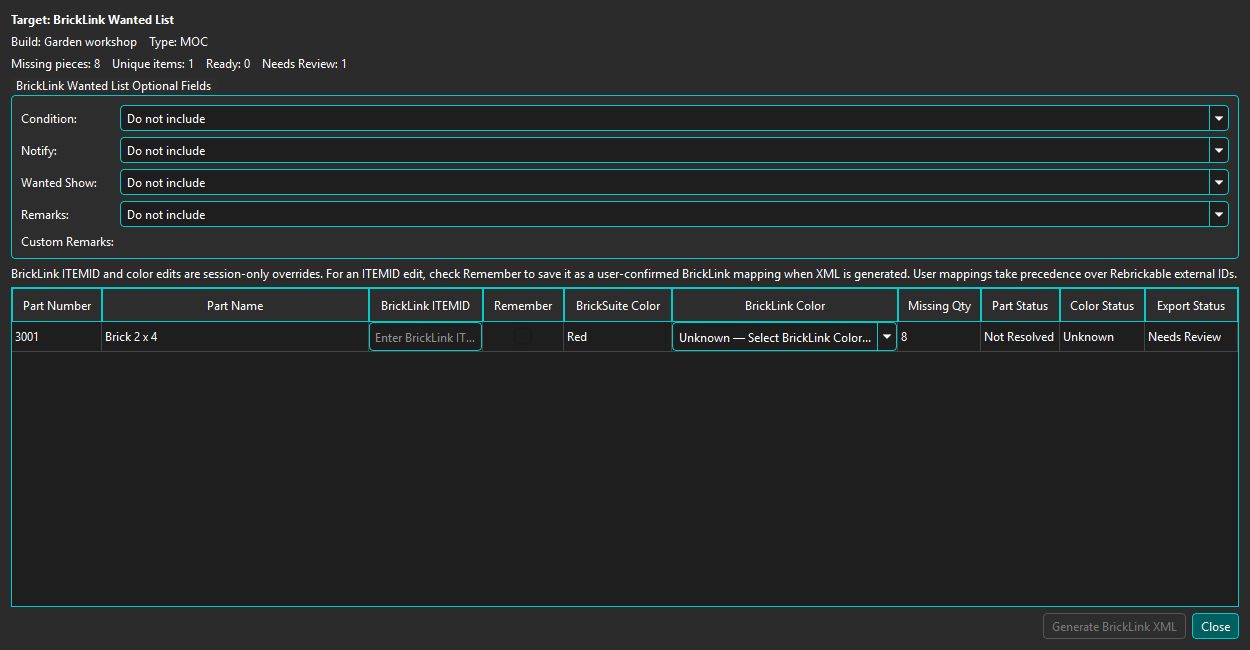
Choose Procure Missing Parts... in the Build to open Missing Parts Procurement Preview for a BrickLink Wanted List. Review authoritative Part/Color mappings and resolve every Needs Review row before choosing Generate BrickLink XML. Use Retry Unresolved IDs when needed; do not substitute a guessed provider identity. Review optional Wanted List fields before saving or using the generated XML.
CSV export and Wanted List preparation do not purchase or receive Parts, change requirements, or add Inventory. After acquisition, use Add Inventory or a supported import/receiving preview. Supported BrickOwl order receiving validates identities and colors before a transactional commit records Inventory and history. Re-run Allocate Available afterward. Rebrickable Custom List/WishList API integration is not available.